Building a Python Library System with CSV Files
Contents · 26 sections
- What the library coursework asks the program to do
- What Daniel built from the brief
- The project structure gives every file one job
- Step 1: Open and run the project correctly in PyCharm
- Step 2: Treat each CSV as a small table
- Step 3: Build one reusable CSV loader and saver
- A useful student check
- Step 4: Check login status before opening the menus
- Step 5: Keep book counts consistent
- Step 6: Connect books, borrowers, and loans
- Step 7: Validate input inside the screen loop
- Step 8: Read the terminal output as evidence
- A test plan a first-year student can actually run
- The checks I would complete before a formal submission
- Match permissions to the brief
- Use one date format everywhere
- Align the extension rule
- Complete the separate decryption deliverable
- Keep security claims at classroom level
- What this project teaches beyond the menu options
- Common questions about this Python library system
- Does the project use a real database?
- Why are books, borrowers, and loans in separate files?
- How does the program know whether a book is available?
- Why does a deleted book remain in the CSV?
- Is this exact project ready to submit?
A practical walkthrough of a working Python console application built with CSV files, PyCharm, and layered classes.
Project type: Python coursework, CSV file handling and console application design
Related help: Python programming assignment help
Student privacy: The student’s name, university, grade, and deadline are not published.
Building a library system from a short coursework brief becomes much easier when the work is split into four parts: the data files, the managers that change the data, the screens that collect input, and the tests that check the important paths. In this project, I used a PyCharm console application, five CSV files, separate Python modules, and a small set of classes to connect books, borrowers, staff, and loans.
This article walks through the actual implementation and the output shown in the supplied project recording. It includes code excerpts, menu results, data-flow explanations, and checks a first-year student can repeat in PyCharm. It is a learning walkthrough, not a ready-to-submit assignment. Use it to understand the design, then run and explain your own work according to your course rules.
What the library coursework asks the program to do
The assessment brief asks for a console-based Library Management System for a university library. The supplied data must remain in CSV format, and the program must support staff login, library records, borrowing activity, and role-aware actions.
The core application has these jobs:
- authenticate staff with an email, password, and account status;
- limit repeated failed logins and reject blocked or inactive users;
- display books with their total, available, and on-loan copy counts;
- add, update, and soft-delete inventory records;
- display and manage borrowers;
- create, return, extend, and review loans;
- keep the terminal menus usable by providing a way back to the previous screen.
The brief also lists separate work for a Caesar-cipher decryption task, unit testing, complexity analysis, an online quiz, Codio activity, and a video demonstration. The supplied program concentrates on the library application. Those separate assessment items need their own verification rather than being implied by the working menu.
What Daniel built from the brief
I started by keeping the first version small enough for a first-year Python student to follow. The program does not use a web framework or a database server. It uses ordinary Python files, csv.DictReader, dictionaries, lists, classes, loops, and exception handling.
| Area | Implementation in the supplied project | Why it matters to a student |
|---|---|---|
| Login | Authentication loads staff.csv, checks active status, and counts failed attempts | Shows how a CSV row becomes a logged-in user |
| Books | BookManager tracks TotalCopies, CopiesAvailable, OnLoan, and Deleted | Makes inventory changes visible in the data file |
| Borrowers | BorrowerManager searches, adds, updates, and deletes borrower records | Demonstrates CRUD operations with dictionaries |
| Loans | LoanManager links BookID to BorrowerID and calculates a due date | Shows how separate CSV files work together |
| Screens | home_screen.py, book_screen.py, borrower_screen.py, loan_screen.py, and staff_screen.py print menus and collect input | Keeps prompts separate from data logic |
| Utilities | file_handler.py, auth.py, and constants.py hold shared logic and values | Reduces repeated code across screens |
| Evidence | The supplied recording shows the project running in PyCharm | Gives a real view of the menus and terminal output |
The most important design decision is the separation between a screen and a manager. A screen asks the user for a book ID. A manager decides whether that book exists, whether it is available, and how the CSV record changes. That separation makes the program easier to trace when something goes wrong.
The project structure gives every file one job
The supplied project folder is organised like this:
SDCoursework_StudentID/
├── main.py
├── data/
│   ├── staff.csv
│   ├── borrowers.csv
│   ├── inventories.csv
│   ├── loaned.csv
│   └── message.csv
├── screens/
│   ├── home_screen.py
│   ├── book_screen.py
│   ├── borrower_screen.py
│   ├── loan_screen.py
│   └── staff_screen.py
├── utils/
│   ├── auth.py
│   ├── book_manager.py
│   ├── borrower_manager.py
│   ├── constants.py
│   ├── file_handler.py
│   └── loan_manager.py
└── tests/
    └── test_library_system.py
main.py starts the login and then routes the selected menu option to the correct screen. The screens folder owns prompts and menus. The manager classes hold the book, borrower, and loan operations. The utils folder contains shared CSV and authentication functions.
This structure is useful because a student can follow one action from the prompt to the data change. For example, issuing a book starts in loan_screen.py, calls loan_manager.create_loan(), updates the book counters through book_manager, and saves loaned.csv through save_csv().
Step 1: Open and run the project correctly in PyCharm
The relative path data/ is important. Open the complete SDCoursework_StudentID folder in PyCharm, not only main.py. Running the file from a different working directory can make a correct CSV appear to be missing.
Use this sequence:
- Open the project folder in PyCharm.
- Confirm that the selected interpreter is Python 3.8 or newer.
- Open
main.pyfrom the project root. - Run
main.pywith the green Run button. - Use an active record from
data/staff.csvfor the demonstration. - After every add, update, issue, or return action, inspect the relevant CSV file.
The terminal starts with the application title and asks for an email and password. After successful authentication, the main menu exposes Home, Books, Borrowers, Loans, Staff, and Exit.
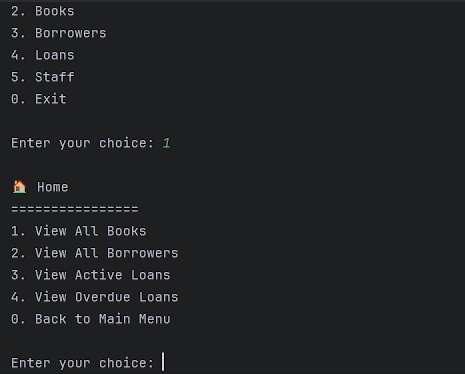
Figure 1. Genuine frame extracted from the supplied project recording. The terminal is showing the Home screen after the application has started.
Step 2: Treat each CSV as a small table
CSV files are easy to inspect while learning because their headers and rows are visible. The supplied project uses five files:
| File | Main purpose | Fields used by the application |
|---|---|---|
staff.csv | Staff accounts | UserID, Name, Role, Email, PhoneNumber, HireDate, Password, Status |
borrowers.csv | Borrower records | BorrowerID, Name, Address, Phone, Email, MembershipDate |
inventories.csv | Book catalogue | BookID, Title, Author, Genre, PublishedYear, TotalCopies, CopiesAvailable, OnLoan, Deleted |
loaned.csv | Active loans | BookID, BorrowerID, Due |
message.csv | Encrypted message for a separate brief section | Encrypted message content |
The loan file uses IDs instead of repeating a whole book or borrower record. When the program prints an active loan, it looks up the matching book and borrower, then prints their readable names. This is a small but important database idea: one record can refer to another through a key.
Do not rename the headers casually. The Python code asks for exact keys such as BookID, BorrowerID, CopiesAvailable, and Due. A spelling change in a CSV header can turn into a KeyError or make a lookup return no result.
Step 3: Build one reusable CSV loader and saver
The first reusable layer is utils/file_handler.py. It puts the data directory in one place and gives every manager the same way to read and write rows.
import csv
import os
from utils.constants import DATA_DIR

def load_csv(filename):
    filepath = os.path.join(DATA_DIR, filename)
    try:
        with open(filepath, 'r', newline='') as file:
            reader = csv.DictReader(file)
            return list(reader)
    except FileNotFoundError:
        print(f"Error: File {filename} not found")
        return []

def save_csv(filename, data, fieldnames):
    filepath = os.path.join(DATA_DIR, filename)
    with open(filepath, 'w', newline='') as file:
        writer = csv.DictWriter(file, fieldnames=fieldnames)
        writer.writeheader()
        writer.writerows(data)
    return True
The important line is return list(reader). Each CSV row becomes a dictionary, so code can use book['Title'] instead of remembering a numeric column position. That makes the later manager methods easier to read.
The file also contains backup and restore helpers. The report discusses backup and recovery, but the main menu does not currently expose those helpers as a user action. That distinction is worth recording accurately in a project blog post.
A useful student check
Open inventories.csv, print the result of load_csv('inventories.csv'), and inspect one dictionary. Then change one value in the program, call save_csv(), and reopen the CSV. This connects the Python list, the dictionary keys, and the file on disk.
Step 4: Check login status before opening the menus
The authentication class loads the staff records once and checks each submitted login against the CSV data. The comparison normalises email spacing and letter case, but it keeps the password comparison exact.
class Authentication:
    def __init__(self):
        self.login_attempts = {}
        self.staff_data = load_csv(STAFF_FILE)

    def authenticate(self, email, password):
        if (email in self.login_attempts and
                self.login_attempts[email] >= MAX_LOGIN_ATTEMPTS):
            raise AuthenticationError(
                "Account is blocked due to too many failed attempts"
            )

        for staff in self.staff_data:
            if (staff['Email'].strip().lower() == email.strip().lower()
                    and staff['Password'] == password
                    and staff['Status'].strip().lower() == ACTIVE):
                self.login_attempts[email] = 0
                return staff

        self.login_attempts[email] = self.login_attempts.get(email, 0) + 1
        if self.login_attempts[email] >= MAX_LOGIN_ATTEMPTS:
            raise AuthenticationError(
                "Account is now blocked due to too many failed attempts"
            )
        raise AuthenticationError("Invalid credentials")
This code demonstrates several beginner-friendly ideas at once: a class attribute, a dictionary used as a counter, a for loop, string normalisation, a constant for the attempt limit, and a custom exception. A student can test it with one active record, one inactive record, and three wrong passwords.
The supplied CSV stores passwords as readable text. That is acceptable only as a classroom prototype. A real system would hash passwords and protect the staff file. Mentioning this limitation is especially important in a cybersecurity project because a working login screen is not the same as secure authentication.
Step 5: Keep book counts consistent
The inventory record carries three numbers that must agree:
TotalCopiesis the number the library owns;CopiesAvailableis the number that can be issued now;OnLoanis the number currently issued.
When a new book is added, the supplied BookManager sets available copies equal to total copies and sets OnLoan to zero. When a loan is issued, it subtracts one from CopiesAvailable and adds one to OnLoan.
def is_book_available(self, book_id):
    book = self.get_book_by_id(book_id)
    if not book:
        return False
    return (int(book['CopiesAvailable']) > 0 and
            book['Deleted'].strip().lower() != 'true')

def update_loan_status(self, book_id, loan=True):
    book = self.get_book_by_id(book_id)
    if not book:
        return False

    if loan:
        book['CopiesAvailable'] = str(
            int(book['CopiesAvailable']) - 1
        )
        book['OnLoan'] = str(int(book['OnLoan']) + 1)
    else:
        book['CopiesAvailable'] = str(
            int(book['CopiesAvailable']) + 1
        )
        book['OnLoan'] = str(int(book['OnLoan']) - 1)

    return save_csv(INVENTORIES_FILE, self.books, self.fieldnames)
The deletion method uses a soft-delete flag instead of removing the row:
def delete_book(self, book_id):
    return self.update_book(book_id, Deleted='true')
That choice preserves the original record and lets the normal book list hide it. It also gives a student a clear example of how a status field can be more useful than immediately deleting data.
The recording shows the resulting book output, including a title, author, publication year, and a value such as Copies Available: 2/3.
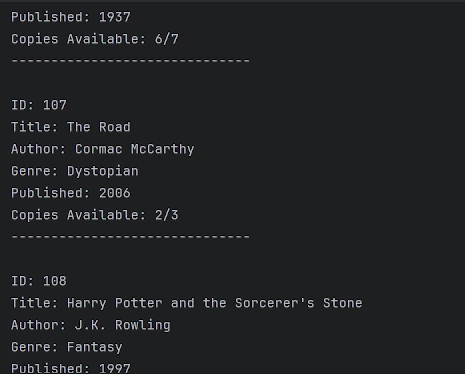
Figure 2. Genuine project output showing the inventory display. The sample records demonstrate how the program reports available copies against total copies.
Step 6: Connect books, borrowers, and loans
The loan manager is the point where the three areas meet. A new loan needs a valid book ID and a valid borrower ID. The manager checks availability before it writes the loan row.
def create_loan(self, book_id, borrower_id):
    from utils.book_manager import book_manager

    if not book_manager.is_book_available(book_id):
        return False, "Book is not available for loan"

    due_date = (datetime.now() + timedelta(days=self.loan_period))
    new_loan = {
        'BookID': book_id,
        'BorrowerID': borrower_id,
        'Due': due_date.strftime('%Y-%m-%d')
    }

    self.loans.append(new_loan)
    book_manager.update_loan_status(book_id, loan=True)
    save_csv(LOANED_FILE, self.loans, self.fieldnames)
    return True, "Loan created successfully"
The supplied class sets self.loan_period = 14, so its base due date is 14 days from the current date. Returning a book removes the matching book and borrower pair from the loan list, then reverses the copy counters.
The display screen then joins the IDs back to readable records:
for loan in loans:
    book = book_manager.get_book_by_id(loan['BookID'])
    borrower = borrower_manager.get_borrower_by_id(loan['BorrowerID'])
    if book and borrower:
        print(f"Book: {book['Title']}")
        print(f"Borrower: {borrower['Name']}")
        print(f"Due Date: {loan['Due']}")
This is the part students often understand best after seeing the output. The loan row stores IDs, while the user sees a book title, borrower name, and due date. The program is doing a small lookup across related data files.
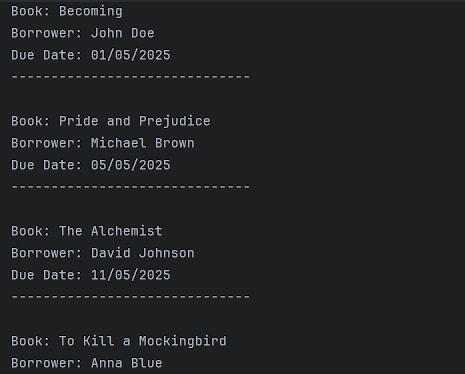
Figure 3. Genuine active-loan output from the supplied recording. The demonstration uses sample records to show the relationship between a book, a borrower, and a due date.
Step 7: Validate input inside the screen loop
The screen modules keep asking until the user supplies a usable value. For example, the extension flow checks that the number of days is an integer greater than zero.
while True:
    try:
        days = int(input("Enter number of days to extend (default 7): ").strip() or "7")
        if days > 0:
            break
        print("Number of days must be positive.")
    except ValueError:
        print("Please enter a valid number.")
The same pattern appears when adding a book. The program converts the copy count to an integer, rejects zero or negative values, and catches text that cannot be converted. That keeps an ordinary typing mistake from crashing the whole application.
The loan menu shown in the recording makes these actions visible to a user:
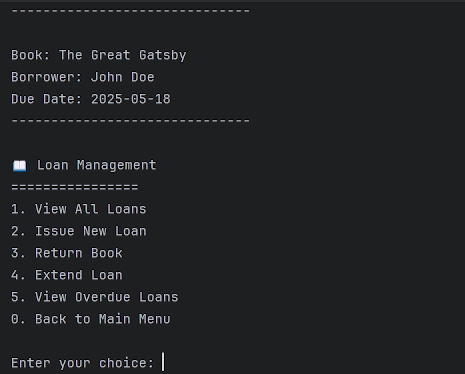
Figure 4. Genuine Loan Management menu from the supplied recording. A student can use this menu to plan test cases before running each action.
Step 8: Read the terminal output as evidence
A console message is useful, but it is not the whole test. For each action, check three things:
- the prompt accepts or rejects the input correctly;
- the success or error message matches the result;
- the relevant CSV changes in the expected way.
For an issue action, the evidence is a new row in loaned.csv and one fewer available copy. The on-loan count should rise by one to match. For a return action, the loan row disappears and the copy count moves back. For a soft delete, the inventory row remains but Deleted becomes true.
The supplied recording ends with a clean application exit and exit code 0. That does not prove every feature passes, but it does show that the demonstrated run reaches the end of the main menu without a crash.
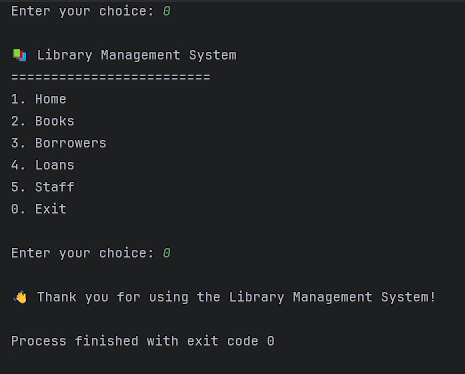
Figure 5. Genuine final frame from the project recording. The program prints its closing message and finishes with exit code 0.
A test plan a first-year student can actually run
The report includes testing discussion, and the project contains a tests/test_library_system.py file. Before relying on that file, run it against the current modules. Some names in the supplied test file, including authenticate_user and FileHandler, do not match the classes and functions currently exposed by the project. That means the file is a useful starting point, not automatic proof that the current project passes its unit tests.
For the working application, start with a manual matrix like this:
| Area | Test input | Evidence to check |
|---|---|---|
| Login | Active email and correct password | Main menu opens and the user role is displayed |
| Login | Wrong password three times | Authentication error and blocked-attempt message |
| Login | Inactive or blocked account | Access is refused |
| Books | Add a book with five copies | New row, five available, zero on loan |
| Books | Enter text for copy count | Error message and another prompt |
| Books | Delete a valid book | Same row remains with Deleted=true |
| Loans | Valid available book and borrower IDs | Loan row is saved and counters change |
| Loans | Book with zero available copies | Loan is refused |
| Returns | Matching book and borrower IDs | Loan row is removed and availability increases |
| Extension | Positive number of days | Existing due date is increased |
| Navigation | Select 0 inside a screen | Previous menu appears |
Students can turn that matrix into unit tests after the manual path is clear. A good test has one setup, one action, and one assertion. For example, a loan test can create a known book and borrower, call create_loan(), then check both the return message and the saved loan row.
The checks I would complete before a formal submission
The working path is useful, but the brief and implementation still need a final alignment pass. These are the specific points I would check rather than hiding them behind a general claim that the project is complete.
Match permissions to the brief
The brief describes supervisors managing inventories and librarians managing borrowing. Several current screen checks use the broad ALLOWED_ROLES list. A final version needs explicit permission rules for each action so the menu behaviour matches the wording of the brief.
Use one date format everywhere
The supplied CSV examples contain dates such as 01/05/2025, while new loan dates from LoanManager use YYYY-MM-DD. The display, comparison, input, and test data should use one agreed format. Mixed formats make overdue comparisons difficult to reason about.
Align the extension rule
The base LoanManager period is 14 days, but the current screen uses seven days as the default extension value. The brief’s extension requirement needs to be checked against that default and documented consistently in the code, menu prompt, and demonstration.
Complete the separate decryption deliverable
The brief asks for a Caesar-cipher program that reads message.csv, uses a shift of 11, preserves the specified special characters, and writes decrypted_file.csv. The supplied project includes message.csv and a DEFAULT_SHIFT constant, but the library menu does not run a decryption function. That work belongs in a separate module or clearly labelled deliverable.
Keep security claims at classroom level
Readable passwords, local CSV files, and an in-memory login-attempt dictionary are appropriate topics for a beginner project. They are not production security controls. A good student explanation says exactly what the prototype demonstrates and what a deployable system would change.
What this project teaches beyond the menu options
The strongest lesson is the link between an action and its data consequences. Issuing a book creates a loan record and reduces the available-copy count. It also gives the borrower a due date. Returning a book reverses that relationship. Soft deletion preserves a record while removing it from the normal list.
The project also gives a student a realistic introduction to maintenance. A multi-file program is easier to grow, but it creates relationships between modules. A renamed CSV header can break a manager. A test written for an earlier class API can stop running. A relative path can fail when PyCharm starts the program from the wrong folder. Those are real debugging lessons, and they are more useful than memorising isolated Python syntax.
Students working on a similar Python project can start with our python programming assignment help, explore Python code rescue for debugging assistance, or browse Python Resources for Students for explanations of Python CSV file handling, date calculations, and classes.
Common questions about this Python library system
Does the project use a real database?
No. The supplied implementation uses CSV files. That choice keeps the application small, readable, and appropriate for practising file handling before moving to SQLite or another database system.
Why are books, borrowers, and loans in separate files?
Separate files reduce repeated information. A loan stores the book ID and borrower ID, then the program looks up the full details when it prints the result.
How does the program know whether a book is available?
is_book_available() checks that the book exists, CopiesAvailable is greater than zero, and Deleted is not true.
Why does a deleted book remain in the CSV?
The supplied delete_book() method uses a soft-delete flag. The row remains available for review, while the normal book display filters it out.
Is this exact project ready to submit?
It is a useful working base and a clear learning example, but the role rules, date format, extension length, decryption deliverable, and test-module names need to be checked against the assessment brief. Students also need to run the project themselves and understand each part. Their institution’s rules on outside assistance and AI tools still apply.
The supplied screenshots in this article are genuine frames from the project recording. They show sample demonstration data and terminal behavior; they do not reveal a student’s name, private order information, or assignment submission details.
Stuck on a Python assignment? We ship working code with a walkthrough.